

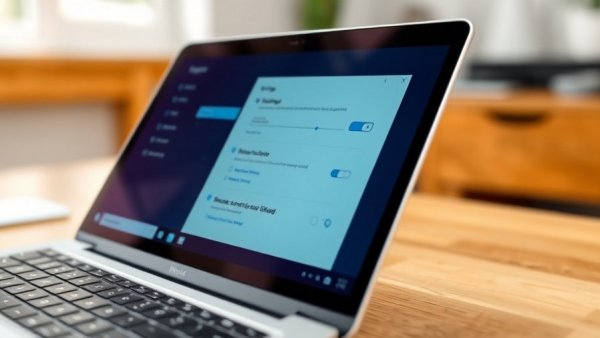
Unwinding Microsoft's Default Features
Many users might not realize that Windows 11 comes packed with features set to simplify your computing experience. However, when Windows automatically activates features like OneDrive Folder Backup during setup, it can lead to unintended sluggishness and unexplained storage issues. This is especially true for distance learners, remote workers, and anyone who relies heavily on their laptop or smartphone for daily tasks.
The Hidden Costs of OneDrive
While OneDrive promises to sync your important files across devices seamlessly, it can unexpectedly fill up your free 5GB of cloud storage. As a student or worker constantly sharing files, this means you’re just one photograph or large document away from hitting your storage limit. Consider the scenario: your Documents folder alone could easily be several hundred megabytes, leaving little room for your pictures and videos. This isn’t just an inconvenience—it’s a significant hindrance to productivity.
Taking Control of Your Storage
Luckily, adjusting these settings isn't complicated. Right-click on your Documents folder, select properties, and check the location tab. If it's pointing to OneDrive, it’s time to reclaim your precious storage by disabling the Folder Backup feature.
Empowering Yourself to Optimize Performance
Understanding these tools and settings can make a huge difference in your overall computing experience. By managing your settings wisely, you can boost your PC’s performance, which translates to a more efficient work or study environment. This knowledge puts you back in control, allowing you to focus on what really matters—whether that’s studying for an exam or completing an important project—without worrying about unsolicited storage limits or slowing services.
Conclusion: Take Action to Enhance Your PC Experience
The features designed to protect you can sometimes do more harm than good, especially if you’re unaware of them. Whether you're navigating class assignments or a busy workday, ensure your settings reflect your actual needs. Check your OneDrive backup settings and regain control of your device. If you're looking to charge those devices efficiently as well, explore the best USB-C chargers to maximize your setup's utility.



Write A Comment